The app
Everything you do in AgentWeave, you do in the app the Hub serves at http://localhost:8000. This
page is the map: what each part of the screen is for, and where things live.
The rail
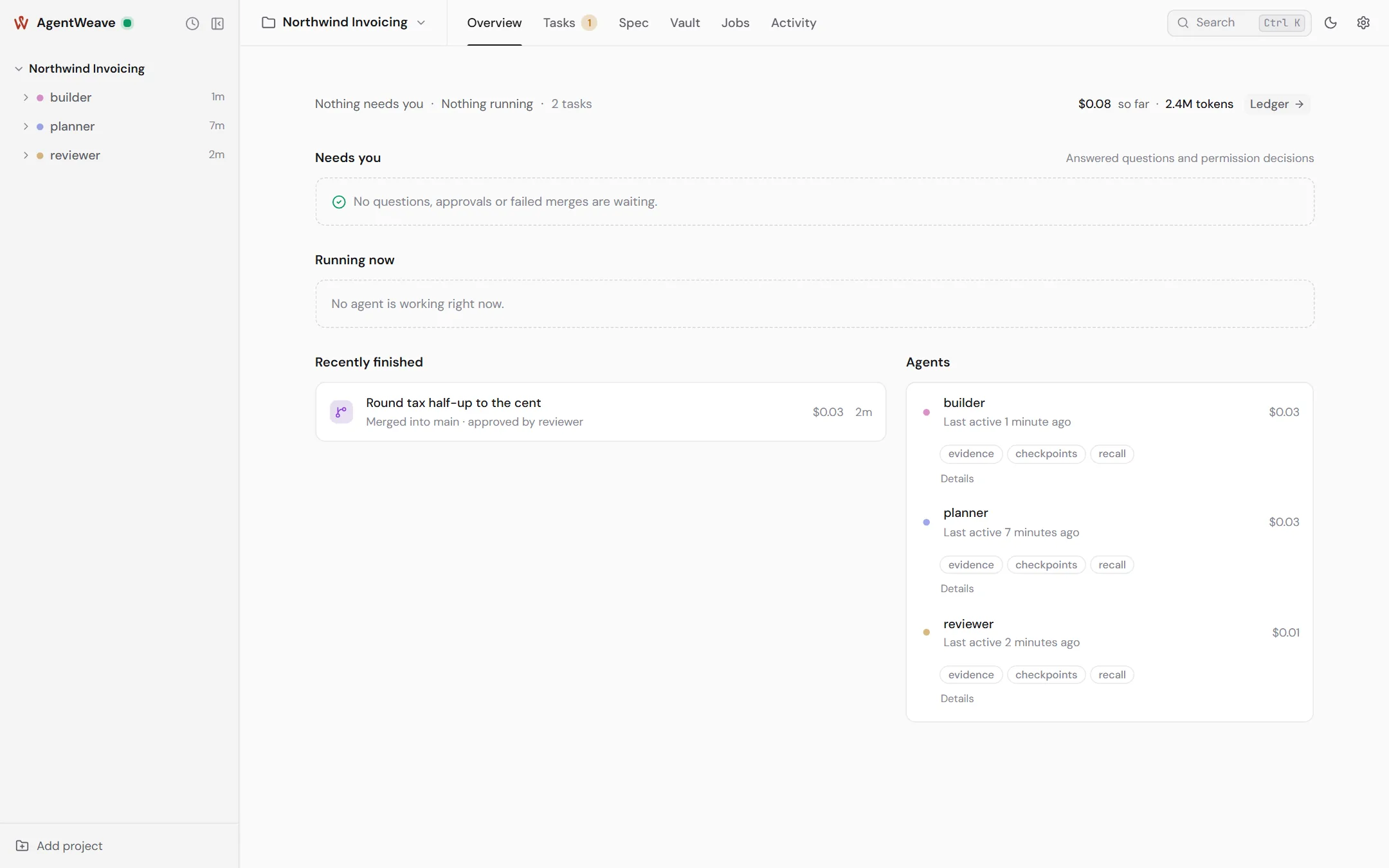
The left rail holds your projects, each project's agents, and each agent's conversations. It holds nothing else.
- A project row shows a pulsing dot while an agent in it is working, and offers Add agent (+) and Project settings (gear). If its folder has gone missing, it says Directory unavailable.
- An agent row expands to its conversations. An amber marker means a conversation is waiting for you. The row menu has New conversation, Agent settings and Show archived.
- A conversation row shows a green dot while running and an amber dot when waiting for you. It also says where the conversation came from: Started by another agent, or Fired by the loop "…". Consecutive firings of one loop fold into a single row.
- The clock button at the top switches the rail between the agent tree and a flat list of recent conversations.
- Add project at the bottom opens any folder. If the folder is already an AgentWeave project it opens. If not, it becomes one.
The rail can be resized or collapsed to icons, and it remembers both.
Project tabs
Across the top, for the selected project:
| Tab | What it is for |
|---|---|
| Overview | What needs you, what is running, what recently merged, and each agent's state and spend. |
| Tasks | The task board, by status, and a dependency view. The tab's badge counts tasks waiting for review. See Tasks and review. |
| Spec | Specification documents, their coverage, evidence and history. See Specifications. |
| Vault | The project's knowledge vault. See Knowledge vault. |
| Jobs | Scheduled jobs, loops and flows. See Jobs, loops and flows. |
| Activity | The project ledger (spend, merges, divergences), a readable activity digest, and raw logs. See Traceability. |
Overview
The Overview answers four questions at a glance:
- Needs you. Questions agents have asked you, which you can answer inline, and tasks that were approved but not merged.
- Running now. Which agent is working on what.
- Recently finished. Merges into your main branch, and who approved each one.
- Agents. Each agent's status, for example Working on "…", Waiting for your answer or No runner yet, with its spend so far and the grants it holds.
Conversations
Opening an agent's conversation shows the timeline, the composer, and an optional side panel with specs, files and loops. That is where most of the work happens. See Conversations.
Project settings
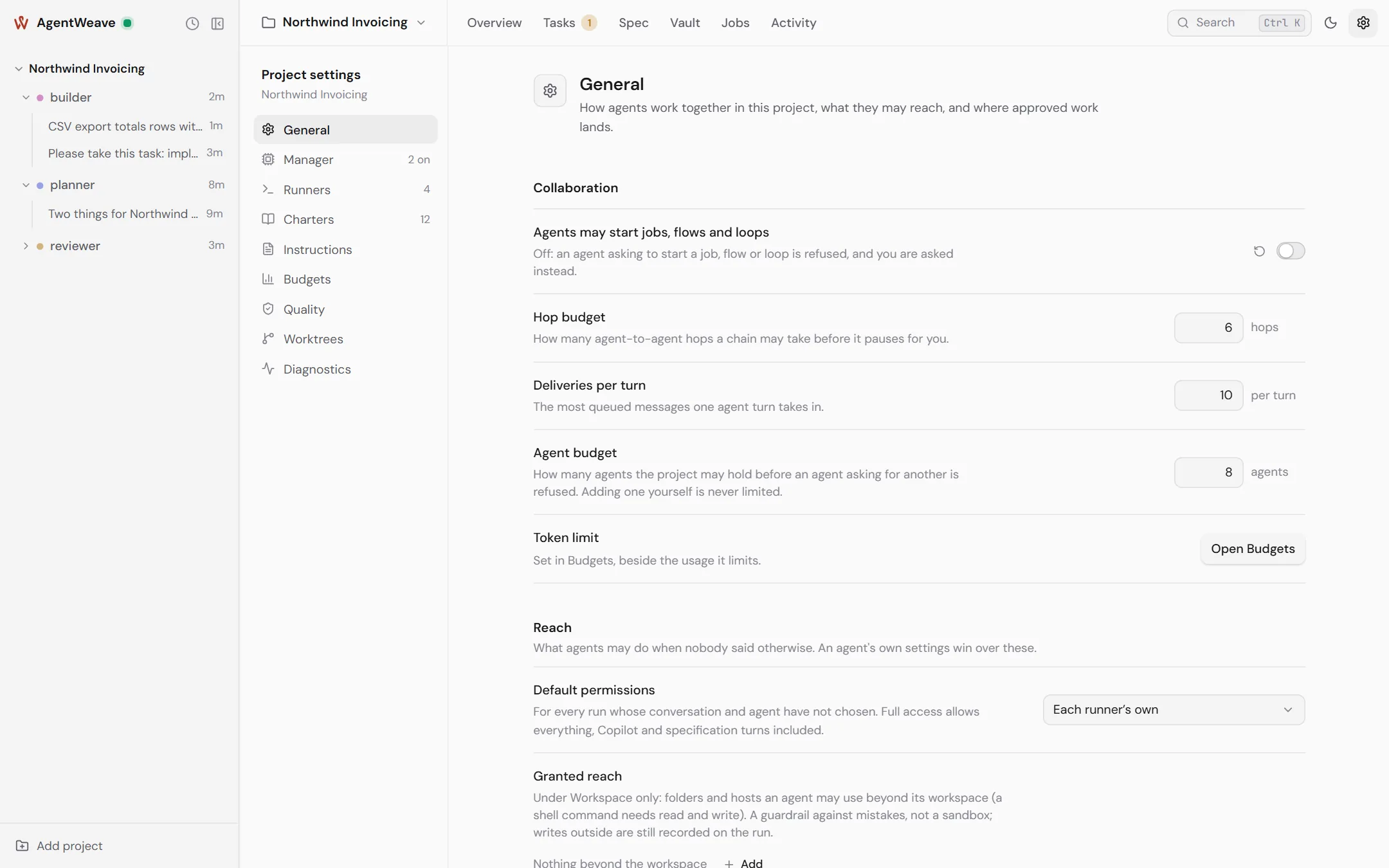
The gear in the top bar opens the project's settings:
| Section | What it holds |
|---|---|
| General | Collaboration limits (hop budget, deliveries per turn, agent budget, whether agents may start jobs). Default permissions and granted reach. Main branch and Checks (the quality gate on approval). Checkpointing. The project's name and folder. Custom spec steps. Trace export. |
| Manager | Background jobs the Hub runs with a model: conversation titles, vault distillation, vault reports, the spec vault check. Each is off until you turn it on and pick a runner. |
| Runners | The CLIs agents run with: Claude Code, Codex, GitHub Copilot. |
| Charters | What each kind of agent is accountable for. |
| Instructions | Rules every agent in this project reads at the start of a session, before its charter. |
| Budgets | Spend and tokens so far, and an optional token limit that pauses autonomous work. |
| Worktrees | Every agent and task checkout, and any conflicts between them. |
| Diagnostics | Counts and raw status, with a Copy status button for bug reports. |
Search and shortcuts
Ctrl+K (Cmd+K on macOS) opens search across the current project's agents, tasks, specification documents and conversations.
| Keys | Where | Does |
|---|---|---|
| Ctrl+K | anywhere | Search |
| Ctrl+Shift+K | conversation, Spec tab | Open a specification document |
| Enter / Shift+Enter | composer | Send / new line |
@ |
composer | Mention a file |
/ at the start of a line |
composer | Commands, such as /model |
| 1 – 9 | a question card | Pick that option |
| Ctrl+Left / Ctrl+Right | a focused task card | Move it to the neighbouring column, if that move is allowed |
| Ctrl+F | Vault | Search the vault |
Links you can share
Every place in the app has a URL: a project tab, a document, a requirement, a conversation, an agent's settings section. Reload, back and forward all land where you were. A link to a conversation or a requirement is a good way to point a colleague at exactly what you mean.
Light and dark
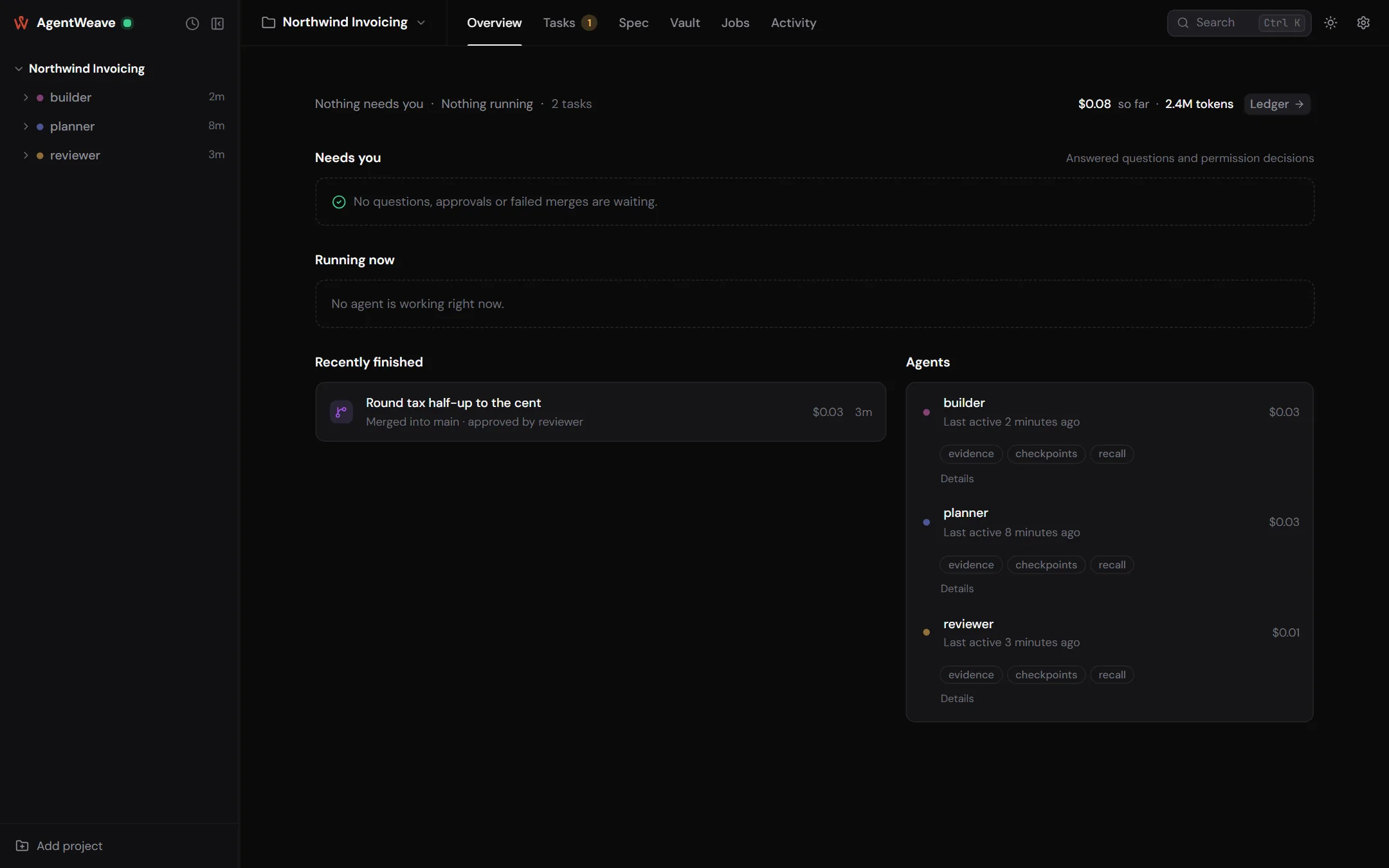
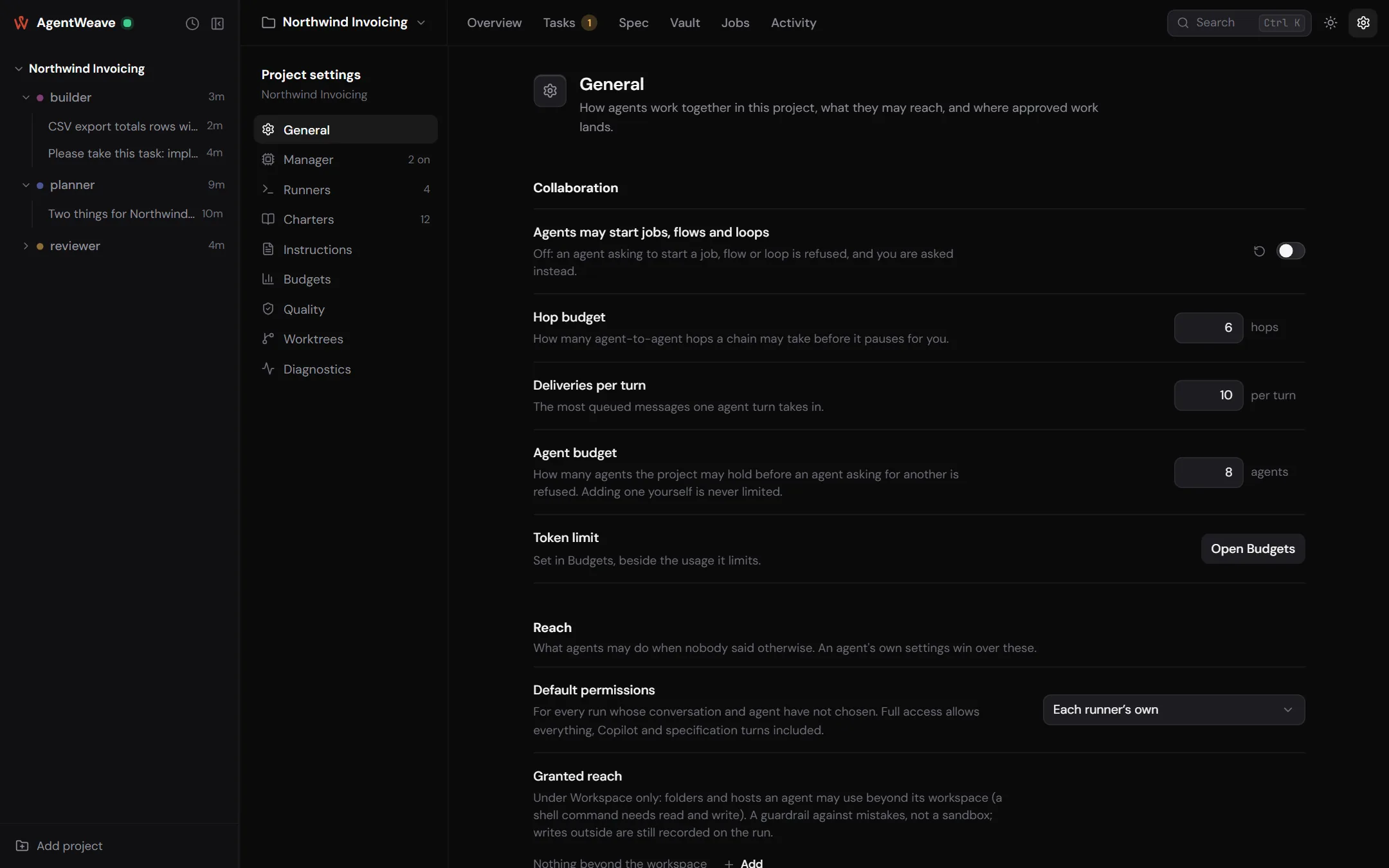
The sun and moon button switches the theme. The app starts in light.